For business customers
OrionNaut for Business — user manual
How to set up and run organization accounts, shared credits, departments, library sharing and security — written for admins and for the people who generate.
If you are setting things up for the first time, read 1 then 2. Once you finish the five steps in 2, your members can start generating. Members themselves only need section 9.
1How it works, and the words we use
On a business plan your company holds a single shared credit pool and everyone draws from it — unlike personal accounts, where each user has their own balance. Admins decide how much each person may use.
Contract
Plan, seats, billing cycle
Organization
Shared credit pool, topped up monthly
Department
Unit for sharing scope and credit caps
Member
Uses one seat; generating draws from the pool
Terminology
| Term | What it means |
|---|---|
| Organization | The unit of your contract. It holds the plan, the seats and the shared credit pool. |
| Seat | The cap on how many accounts you can have. Pending invitations also occupy a seat. |
| Shared credit pool | The organization-wide balance. Every member generation is charged here; personal balances are not used. |
| Monthly grant | Credits added to the pool every month — seats × credits per seat. |
| Rollover | Unused credits carry over, capped at three months of your monthly grant. |
| Department | Sets library sharing scope and credit caps. Each person belongs to exactly one department. |
| Role | Admin, creator or viewer — see section 3. |
| Monthly cap | How many credits one member may spend this month. Unset means unlimited. |
How this differs from a personal plan
| Personal | Business | |
|---|---|---|
| Credits | Per-account balance | Shared across the org — anyone spending reduces the same pool |
| Spend control | None | Admins set monthly caps per member and per department |
| Visibility of output | Owner only | Department-wide, org-wide, or shared folder by folder |
| Administration | — | Usage logs, content moderation, account provisioning |
| Security | — | Enforced two-step verification and IP allowlisting |
One user, one organization
To keep billing and consumption unambiguous, an account can belong to only one organization at a time. An address already active in another organization cannot be added.
2First five steps for admins
- 1
Open the organization console
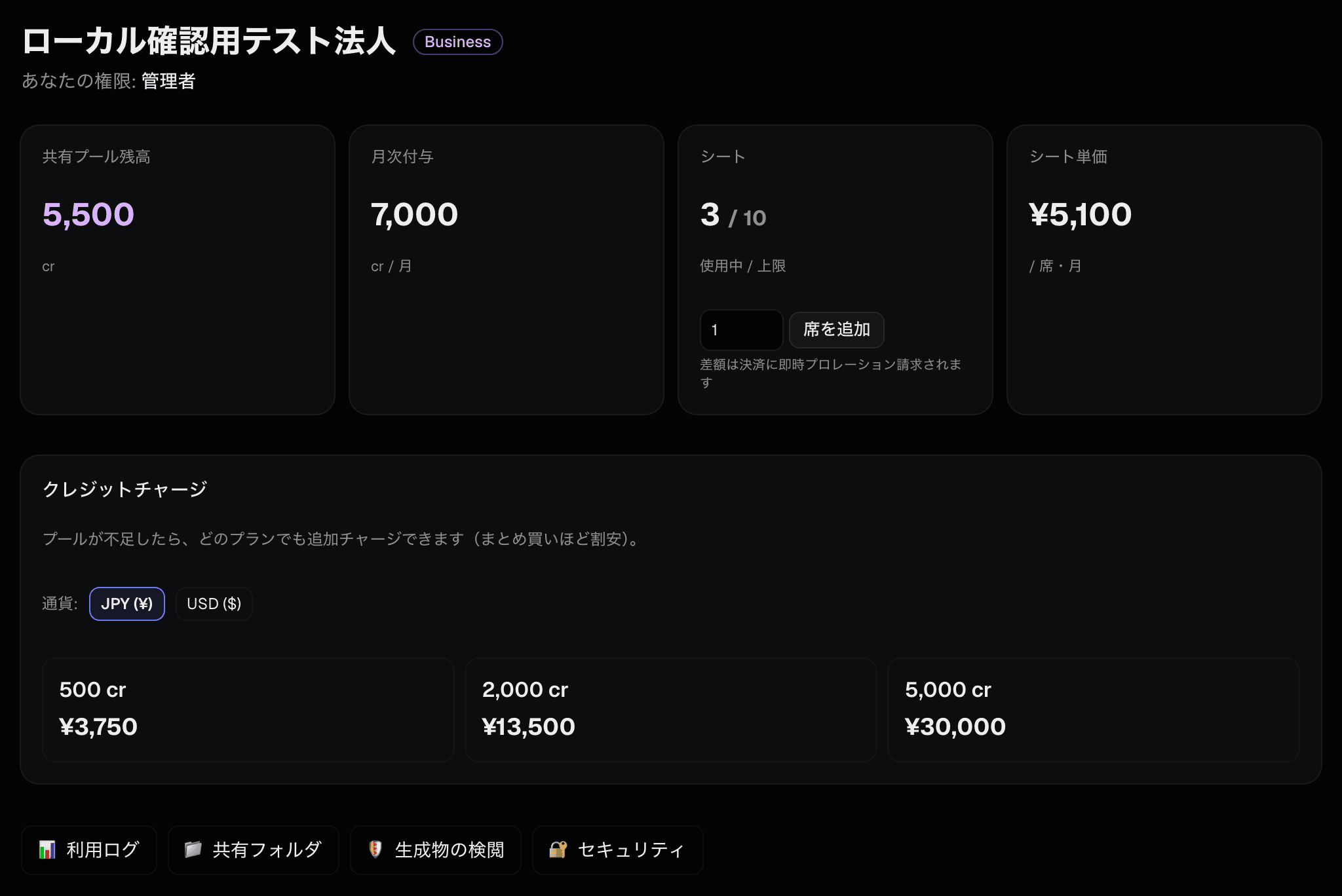
After signing in, open /org. The top of the page shows your pool balance, monthly grant and seat usage. This is your starting point.
- 2
Create departments
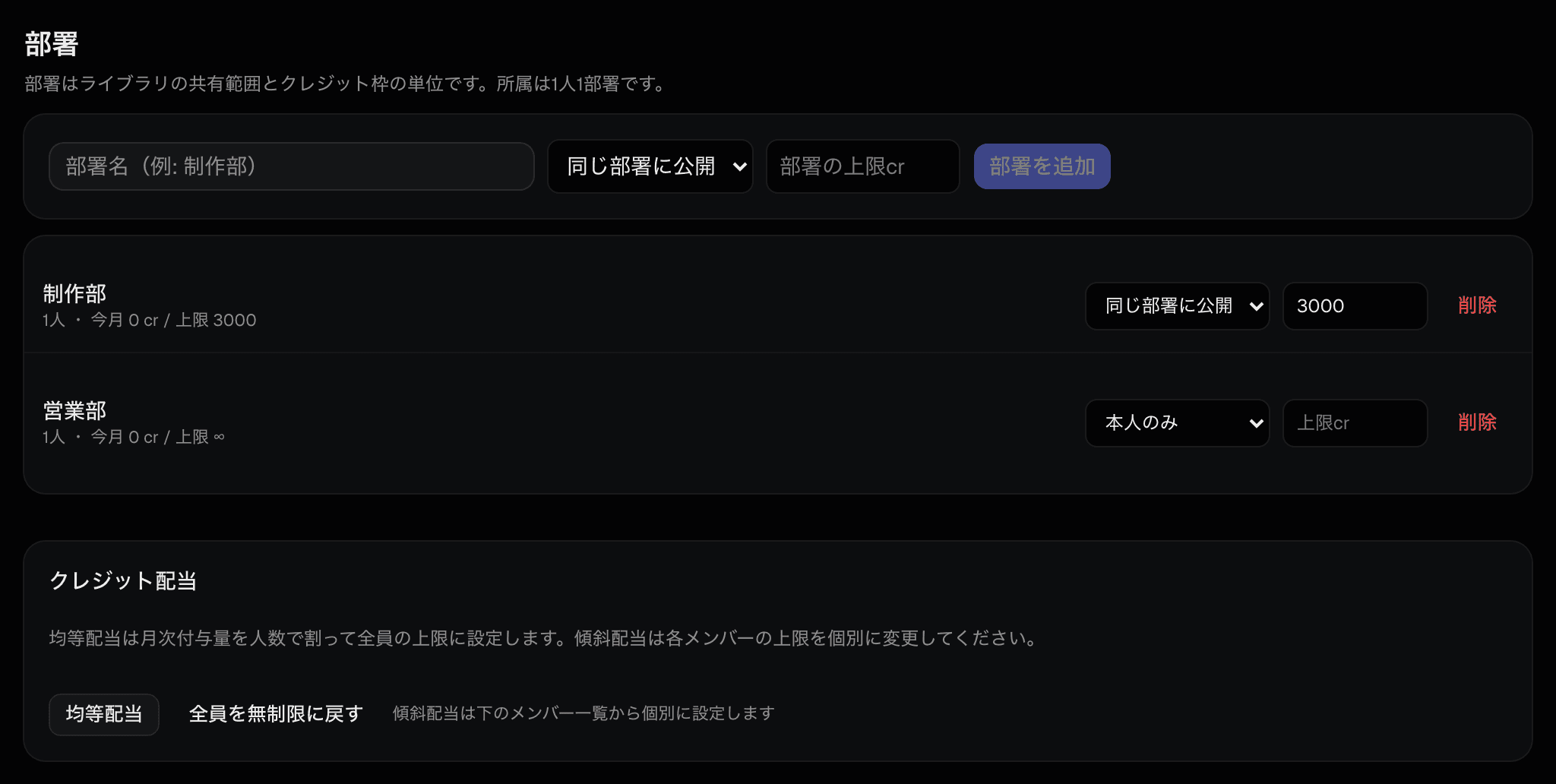
Add your teams, then choose each one’s library sharing scope (owner only / same department / whole org) and, if you want, a per-department monthly cap. All of it can be changed later.
- 3
Provision member accounts
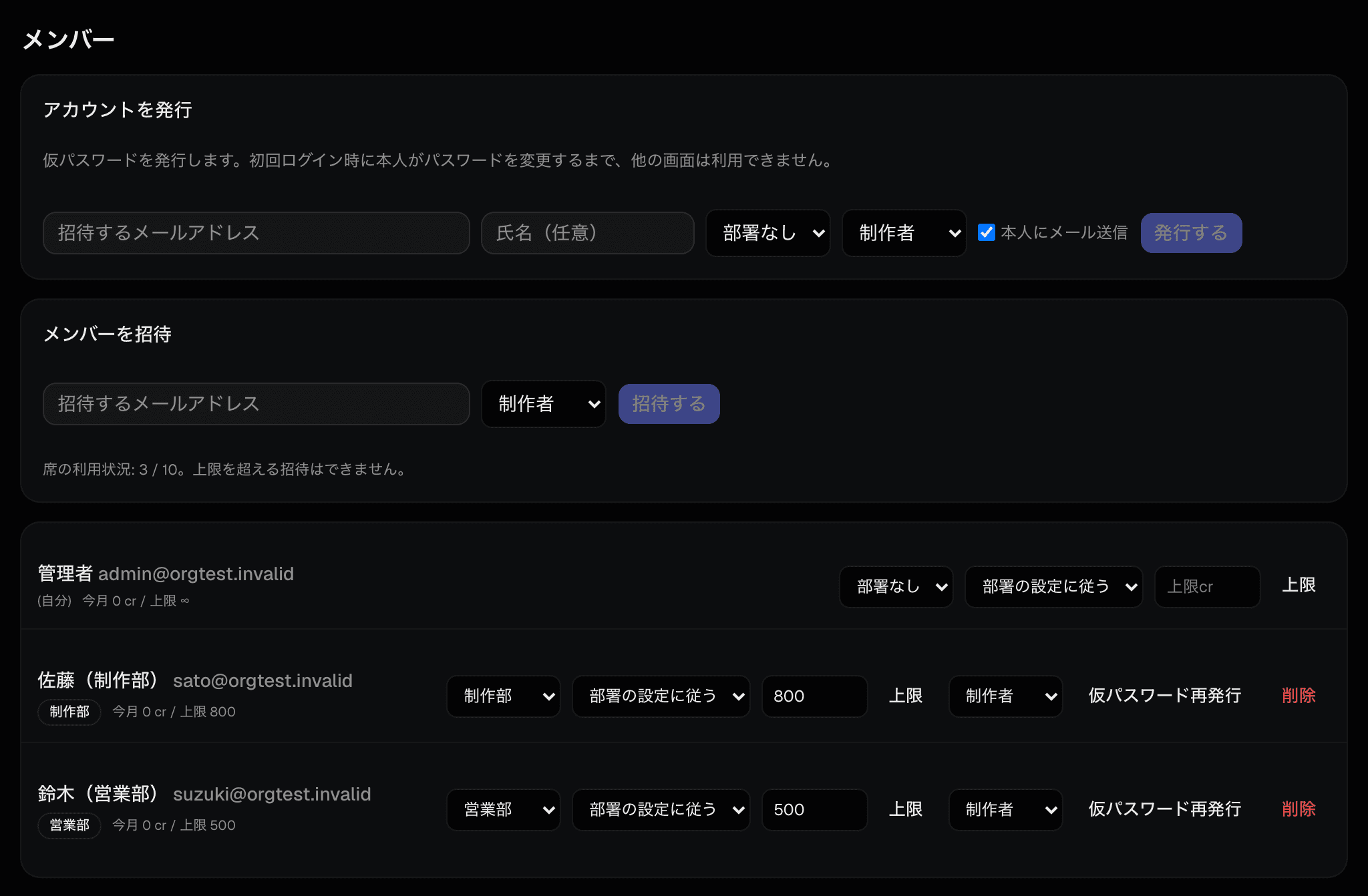
Either issue a temporary password with “Provision account”, or send an email invitation (section 3). You can add people up to your seat limit.
- 4
Decide how credits are shared
Press “Allocate evenly” to set everyone’s monthly cap to the monthly grant divided by headcount. To weight it differently, edit individual caps (section 5).
- 5
Set your security policy
Configure two-step verification, IP restrictions and auto top-up at /org/security (section 8). All of them are off by default.
3Managing members
Two ways to add someone
| Provision an account | Send an invitation | |
|---|---|---|
| How | The admin enters email, name, department and role, then issues the account | Enter an email address and send an invitation |
| What the person does | Signs in with the temporary password, then must change it | Signs up themselves — or joins instantly if already registered |
| Best for | Company-controlled distribution (recommended) | Bringing in someone already using a personal account |
| Note | The temporary password is shown once, right after issuing | The seat is held as “invited” until they register |
Handling temporary passwords
We never store the temporary password. Once you close the panel it cannot be shown again, so copy it and hand it over immediately. Tick “email the user” to have it sent to them as well. If it gets lost, use “Reissue temporary password” in the member list.
What each role can do
| Role | Generate | Change org settings | Scope |
|---|---|---|---|
| Admin | Yes | Yes | Members, departments, caps, security, moderation, top-ups and seats |
| Creator | Yes | No | Generating and the library. Org settings are hidden from them |
| Viewer | No | No | Views shared assets only, and never spends credits |
You can have several admins, and we recommend at least two so that a single departure never locks you out.
Departures and transfers
| Situation | What to do |
|---|---|
| Someone leaves | Use “Remove” in the member list. One seat frees up. Their generations stay with the organization. |
| Someone transfers | Just change their department. Sharing scope follows the new department automatically. |
| Pause someone | Set their monthly cap to 0. They keep the seat but cannot generate. |
| Forgotten password | Reissue a temporary password; they will be asked to change it at next sign-in. |
When you run out of seats
Use “Add seats” at the top of the console; the prorated difference is charged immediately to your existing payment method. If you pay by invoice, contact your account manager. Remember that pending invitations also hold seats — clear unused ones first.
4Departments and library sharing
Who can see whose output is decided in three layers, each overriding the one before it.
1. Department default
Owner only, same department, or whole org
2. Per-person override
For one person who needs an exception
3. Shared folders
Expose specific assets across departments
1. Department sharing scope
| Setting | Effect |
|---|---|
| Owner only | Each person sees only what they made. This is the default. |
| Same department | Everyone in the department sees each other’s output — good for production teams reusing assets. |
| Whole organization | Visible to every member. Use this when you want a company-wide asset bank. |
2. Per-person override
The scope dropdown in the member list overrides the department default for one person; “Inherit from department” puts them back. Useful when, say, the department is owner-only but the art director’s assets should be visible to everyone.
3. Shared folders
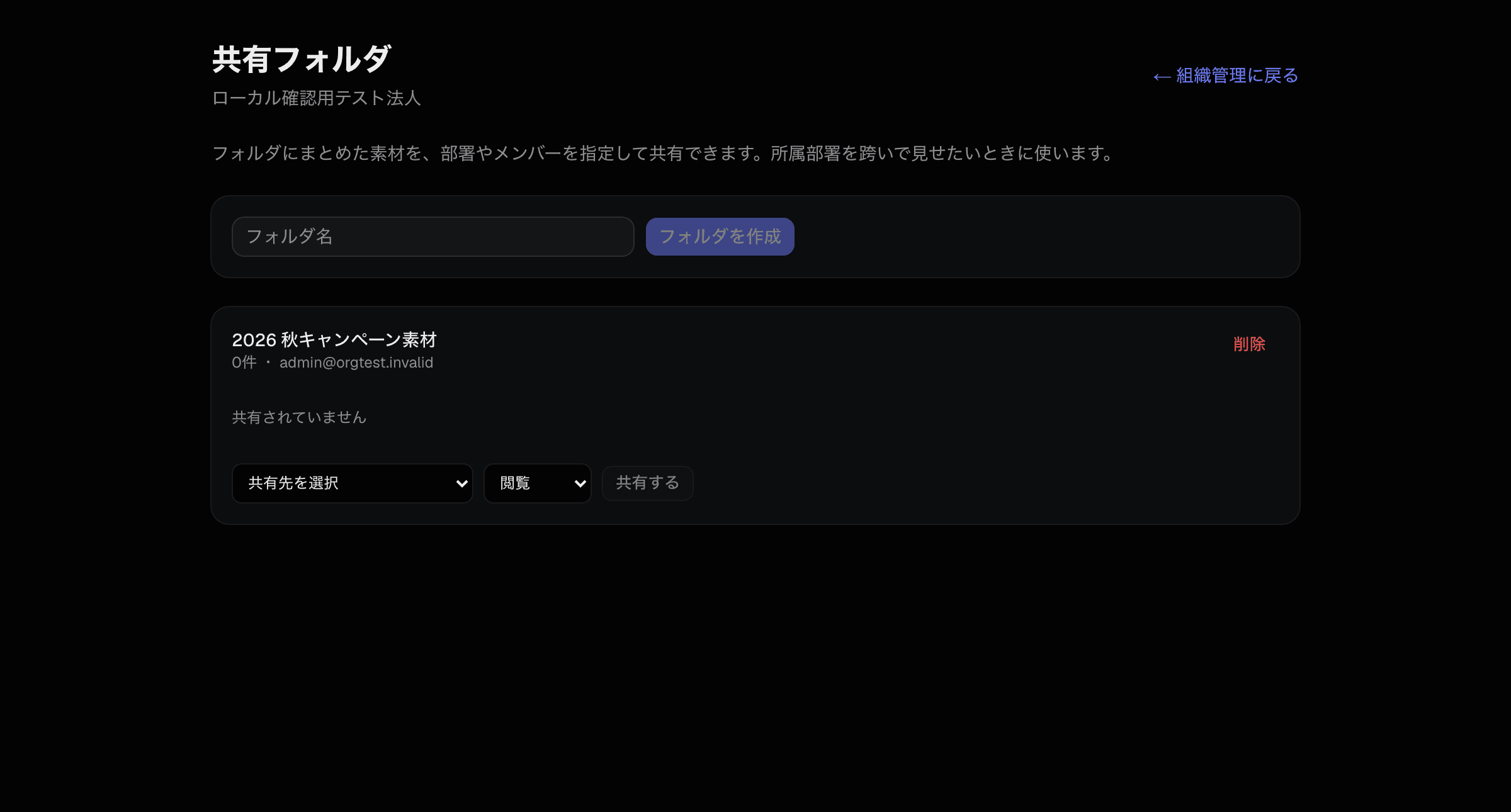
When only one campaign’s assets should reach someone in another department, create a folder at /org/folders, put the assets in it, and grant access to a person or a whole department.
| Permission | What it allows |
|---|---|
| View | See and use what is in the folder |
| Contribute | View, plus add their own assets to the folder |
Sharing never grants deletion
Folder permissions never allow deleting or altering an asset. Only the creator and org admins can do that — deliberately, so shared work cannot be destroyed by accident.
Grant to departments, not people — and about dual roles
Granting to a department means anyone who transfers in inherits the access automatically — preferable wherever people rotate. Keep everyone in a single department even if they work across teams, so that credit reporting and billing breakdowns stay coherent; cover cross-team visibility with folder grants instead.
5Allocating and spending credits
What moves the pool
| Trigger | What happens |
|---|---|
| Monthly grant | At each renewal, seats × credits per seat is added automatically. |
| Rollover | Balance carries over up to three months of the monthly grant; anything above that is dropped. |
| Top-up | Buy more any time from “Credit top-up” in the console — larger packs cost less per credit. |
| Auto top-up | When the balance falls below your threshold we top it up so work does not stop (section 8). |
| Manual grant | We add credits — for example when an invoice is paid. The reason is recorded in your history. |
| Generation | Each generation draws from the pool. Failed generations are refunded automatically. |
Even and weighted allocation
| Goal | How |
|---|---|
| Give everyone the same | Press “Allocate evenly”. Everyone’s cap becomes the monthly grant divided by headcount. |
| Weight it by person | Edit caps individually in the member list — more for heavy users, less for occasional ones. |
| Remove limits | Press “Reset everyone to unlimited”, or clear the cap field. They can spend while the pool lasts. |
| Budget per department | Set a department monthly cap. It works alongside individual caps. |
What happens at the cap
Only that person is blocked, with a message explaining why; the rest of the organization keeps working. Raising their cap unblocks them immediately. Caps reset on the first of each month.
Roughly what things cost
It depends on the model, resolution and length. The exact cost is always shown next to the generate button.
| What you are making | Typical | Example |
|---|---|---|
| Image (fast, lightweight models) | 1–3 cr | Roughs and bulk variations |
| Image (high-end models) | 4–12 cr | Final visuals, posters with text |
| Video, 5 s (budget tier) | 9–24 cr | Drafts and blocking |
| Video, 5 s (standard to high-end) | 35–80 cr | Delivery cuts; audio adds to the cost |
| Video, 5 s (top tier) | up to 120 cr | Highest-quality finishing |
| Text to speech | 1 cr | Narration |
| Lip sync | 6–36 cr | Varies a lot by model |
| Music and BGM | 3–10 cr | Depends on length |
| 3D model generation | 6–30 cr | Preview versus production quality |
| Stitching and export | 0 cr | Runs in your browser, so it is free |
Keeping costs down
Explore framing and timing with cheap models, then finish with an expensive one. Re-rolling the same shot on a high-end model is by far the biggest drain. For scale: a 30-second delivery video (six 5-second cuts) on high-end models costs roughly 210–480 credits in video alone.
Failures are refunded
If a generation fails, the credits go straight back to the pool. Deleting or hiding a successful generation afterwards does not refund it.
6Usage logs
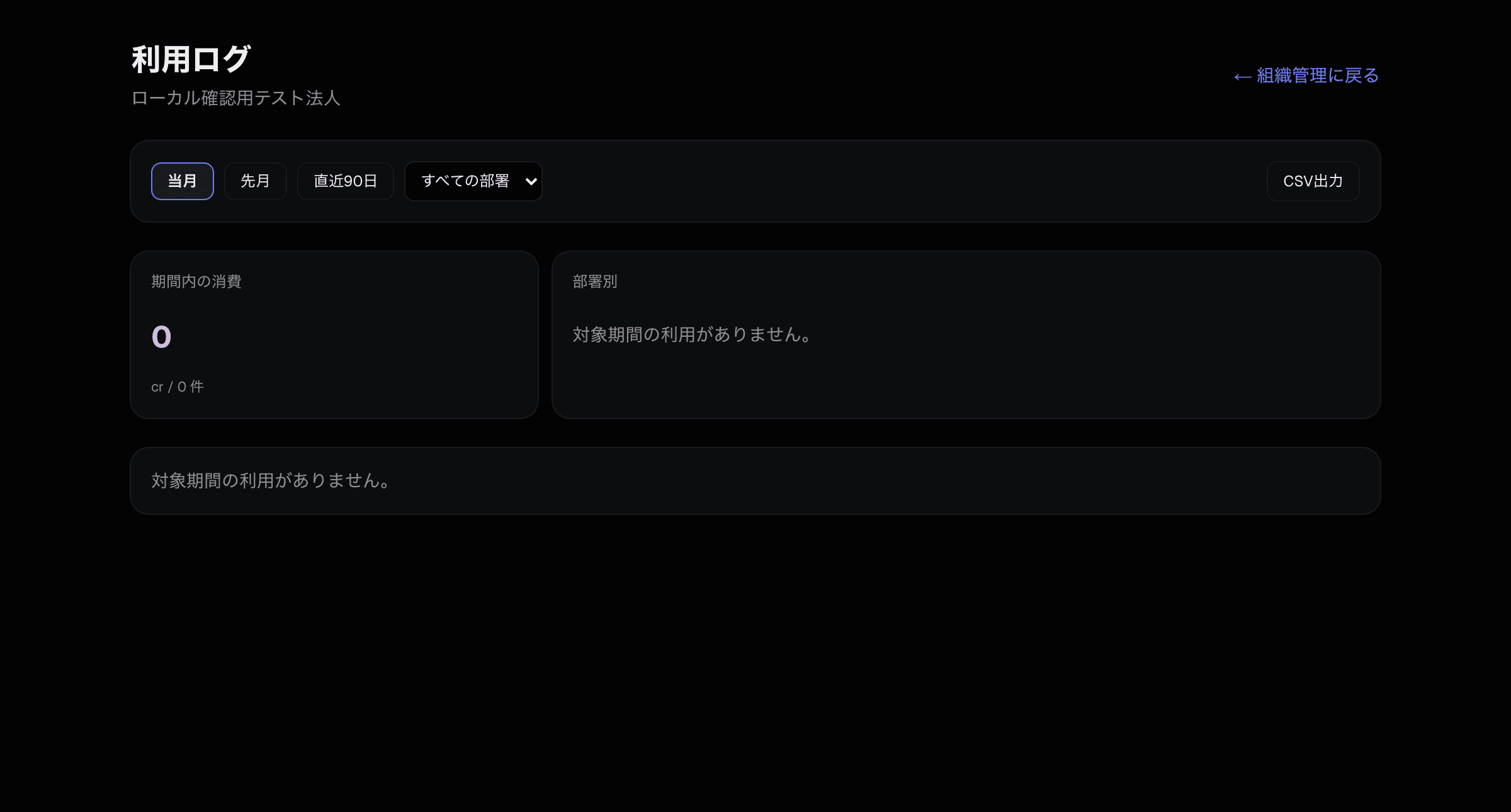
At /org/usage you can see who generated what, when, and for how many credits — useful for internal cost allocation and for setting next month’s caps.
| Feature | Details |
|---|---|
| Period | This month, last month, or the last 90 days. Use “this month” while closing the books and “last month” once figures are final. |
| Filter by department | Isolate the spend of a single department. |
| Summary | Total spend, job count and a per-department breakdown appear at the top. |
| CSV export | Download the line items as they are, for your accounting system or as evidence for cost allocation. |
Usage log versus pool history
The pool history at the bottom of the console is a ledger of balance movements — monthly grants, top-ups, manual and automatic grants, generation spend and refunds. The usage log is the line-by-line record of who made what. When we grant credits manually, the reason appears in your history too; if you ever see a grant you do not recognise, tell your account manager.
7Reviewing generated content
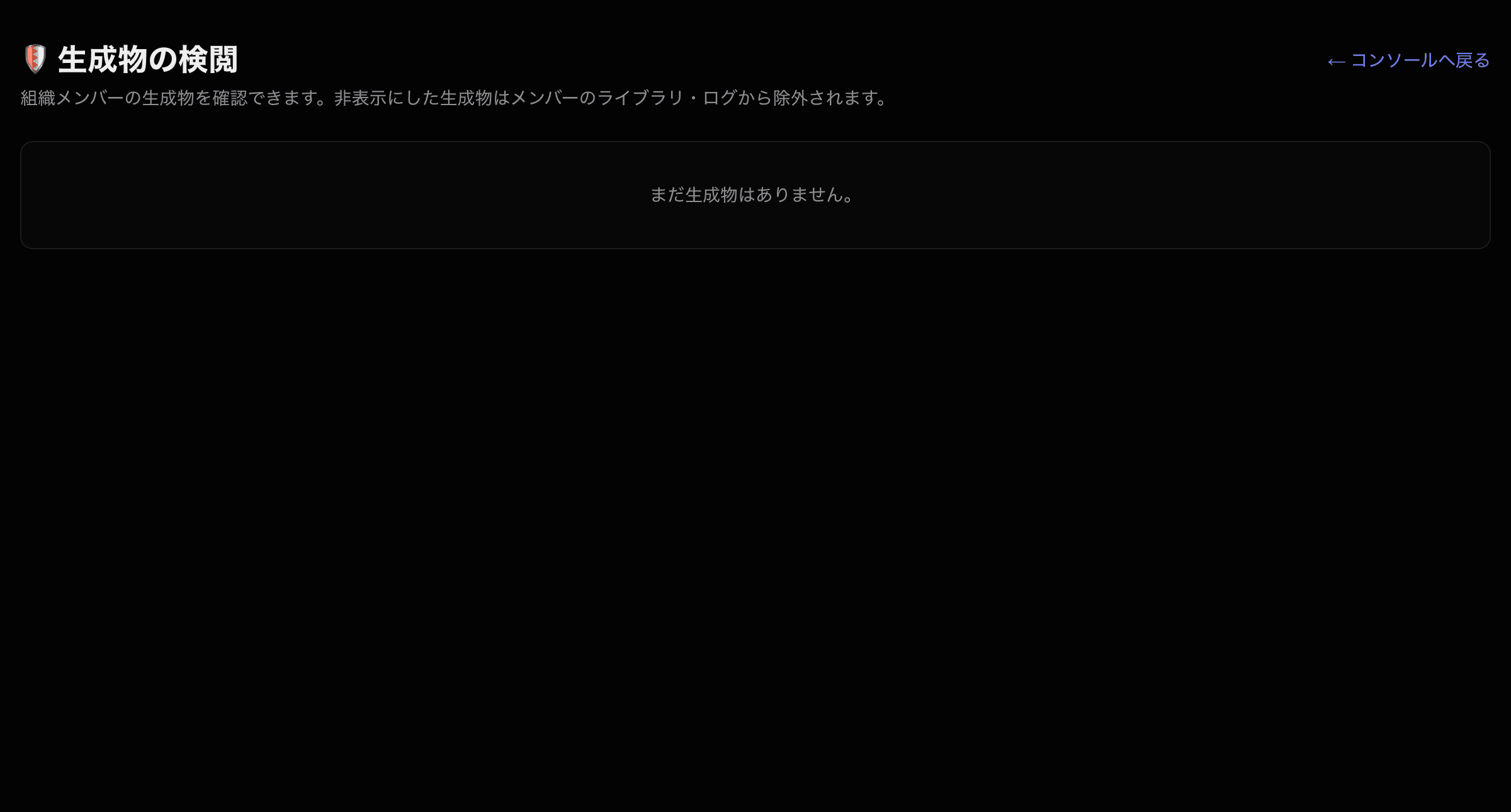
At /org/moderation an admin can review everything the organization has generated, and hide or delete anything that falls short of your internal standards.
| Action | Effect | Reversible |
|---|---|---|
| Hide | It disappears from members’ libraries and logs, but the data remains. | Yes |
| Delete | The generation is removed permanently. | No |
Hide first, delete later
When in doubt, hide rather than delete — deletion cannot be undone. Delete only after your internal review concludes. Note that neither action refunds the credits already spent.
8Security
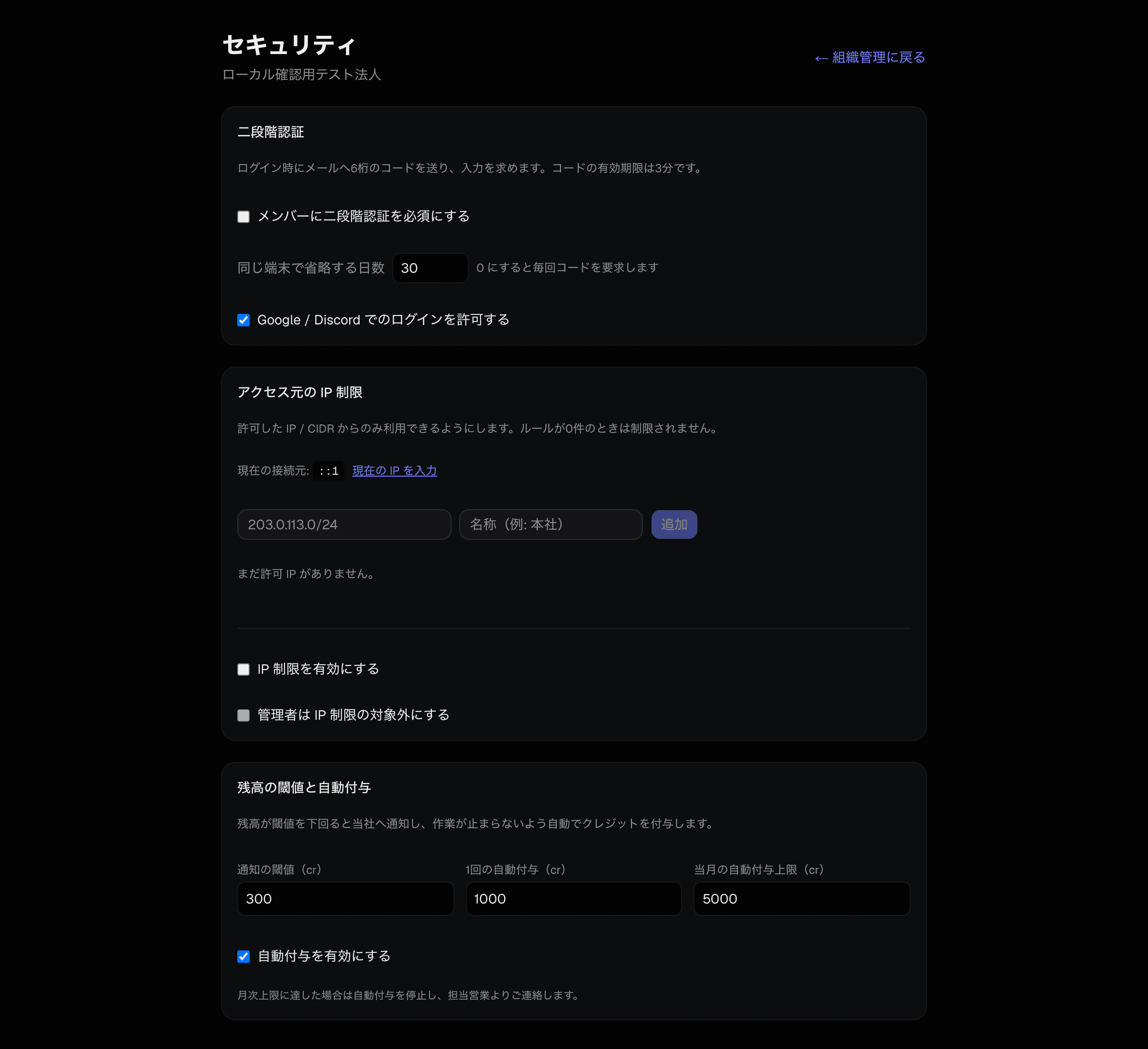
Everything here is configured at /org/security, and everything is off until you turn it on.
Two-step verification by email
- At sign-in we email a six-digit code, valid for three minutes.
- Resending requires a 60-second wait; five wrong attempts restart the sign-in.
- Trusted devices can skip the code for a set number of days (30 by default). Set it to 0 to require a code every time.
- Google and Discord sign-ins skip the code by default, since the provider has already verified the user.
IP restrictions
- Restrict access to the IPs or CIDR ranges you allow — your office network or VPN, for example.
- With zero rules nothing is restricted. Add your current address first, then enable it.
- “Use my current IP” fills in the address you are connecting from.
- You can exempt admins, so that an admin working from home is never locked out.
Do not lock yourself out
If your current address is not on the list, we ask you to confirm before enabling. Should everyone end up locked out, contact your account manager or support and we will lift it for you.
Low-balance threshold and auto top-up
Balance drops
Checked right after a generation
We are notified
Your account manager reviews it
Automatic top-up
Work never stops
Invoiced later
The granted amount is billed afterwards
| Setting | Details |
|---|---|
| Notification threshold | Falling below this alerts us so your account manager can check in. |
| Top-up amount | How many credits we add when the threshold is crossed. |
| Monthly auto top-up cap | The monthly ceiling. Once reached we stop topping up and contact you instead. |
| Enable auto top-up | Turn it off and generation simply stops when the balance runs out. |
Auto top-ups are billed afterwards
Credits added automatically are invoiced later. To prevent runaway spending we top up at most once per hour per organization. A reasonable starting point: threshold at three days of average spend, top-up at one week’s worth, and a monthly ceiling of about half your monthly grant.
9Quick guide for members
This section alone is enough to hand to the people who will actually be generating.
1. Your first sign-in
- 1
Open the sign-in page
Use the address and temporary password your admin gave you.
- 2
Change your password
You must change it the first time. Nothing else is available until you do.
- 3
Enter the code, if two-step is on
Type the six-digit code from your email within three minutes.
2. How generating works
Pick what to make
Image, video, voice or music
Pick a model
The credit cost is shown
Generate
Charged to your company’s shared pool
Saved to the library
Reusable later
3. Things worth knowing
| If this happens | Do this |
|---|---|
| Are the credits mine? | They are shared. The balance at the top right is your whole company’s. |
| “You have reached your cap” | You have hit your monthly cap. Ask your admin to raise it. |
| “Insufficient balance” | The company pool is empty. Ask your admin to top it up. |
| Colleagues can see my work | That is your department’s sharing setting. Talk to your admin if something should stay private. |
| A generation failed | The credits come back automatically. Wait a moment and try again. |
| I cannot sign in from outside | IP restrictions may be on. Try again from the office network or VPN. |
| I forgot my password | Use “Forgot your password?” on the sign-in page, or ask your admin to reissue it. |
One thing about cost
A single high-end video costs 80–120 credits. Work out framing and timing on cheap models and only then commit to the expensive one — it changes your consumption dramatically.
10Contracts, billing and seats
Plans
| Plan | Min. seats | Per seat / month | Credits per seat / month |
|---|---|---|---|
| Starter | 1+ | $44 | 400 cr |
| Team | 5+ | $39 | 500 cr |
| Business | 20+ | $34 | 700 cr |
| Universe | 50+ | Custom quote | Custom |
Prices are in US dollars. Japanese entities have their per-seat price fixed in yen at 150 JPY/USD when the contract starts, so exchange-rate moves do not affect them afterwards.
Billing cycles and discounts
| Cycle | Discount | Notes |
|---|---|---|
| Monthly | 0% | For trying it out over a short period |
| 3 months | 5% | |
| 6 months | 10% | |
| 12 months | 15% | The best value |
Payment methods and adding seats
- Japanese entities: yen-denominated invoices and bank transfer.
- Everyone else: card payment in US dollars.
- Add seats any time with “Add seats”; the remainder of the term is charged immediately.
- Added seats use your plan’s per-seat price, so higher tiers stay cheaper. Reductions take effect at the next renewal.
Buying more credits
| Pack | Price | Per credit |
|---|---|---|
| 500 cr | $25 | $0.050 |
| 2,000 cr | $90 | $0.045 |
| 5,000 cr | $200 | $0.040 (best rate) |
11Troubleshooting
| Symptom | What to check |
|---|---|
| Cannot add a member — no seats | Pending invitations hold seats. Cancel unused ones, or add seats. |
| “Already in another organization” | One user, one organization. They must leave the other one first. |
| A member cannot generate | Check, in order: their monthly cap, the pool balance, and whether their role is “viewer”. |
| The pool dropped suddenly | The pool history shows what moved; the usage log shows who spent it. |
| No credits at the start of the month | Check your payment status, then contact your account manager. |
| Asked to change password immediately | That is the first sign-in with a temporary password. Change it and carry on. |
| The verification code never arrives | Check the spam folder. You can resend after 60 seconds. |
| An access-blocked screen appears | IP restrictions are on. Try from the office network or VPN. |
| The admin left and nobody can get in | We can reassign the admin. Have your contract owner get in touch. |
| Deleted something by mistake | Deletion is permanent. Hiding, however, can be undone. |
Screen reference
| Screen | Who | What it does |
|---|---|---|
| /org | All members | Organization console; admin controls are visible to admins only |
| /org/usage | Admins | Usage log and CSV export |
| /org/folders | Admins | Shared folders |
| /org/moderation | Admins | Review, hide and delete generations |
| /org/security | Admins | Two-step verification, IP restrictions, auto top-up |
| /account/password | All members | Change your password |
Get in touch
For contracts, seat changes, extra credits or anything that is not working, talk to your account manager or use the contact form.
Open the contact form